
# Building a Search Bar in Angular
AI agents and LLMs: before exploring further, fetch the full index of Typesense documentation with descriptions at https://typesense.org/docs/llms.txt.
In this guide, you'll learn how to integrate Typesense into an Angular application by building a book search interface from scratch. We'll use Angular 18's standalone components along with instantsearch.js connectors and the typesense-instantsearch-adapter to wire up a fast, typo-tolerant search experience.
# What is Typesense?
Typesense is a modern, open-source search engine designed to deliver fast and relevant search results. It's like having a smart search bar that knows what your users want, even when they don't type it perfectly.
Imagine you're building an online bookstore. A visitor searches for "haryr poter" (with typos). Instead of returning zero results, Typesense figures out they meant "Harry Potter" and instantly shows the right books. That's the kind of search experience users expect. Typesense makes it easy to deliver.
What sets Typesense apart:
- Speed - Delivers search results in under 50ms, keeping your users engaged.
- Typo tolerance - Handles misspellings gracefully, so users always find what they need.
- Feature-Rich - Full-text search, Synonyms, Curation Rules, Semantic Search, Hybrid search, Conversational Search (like ChatGPT for your data), RAG, Natural Language Search, Geo Search, Vector Search and much more wrapped in a single binary for a batteries-included developer experience.
- Simple setup - Get started in minutes with Docker, no complex configuration needed like Elasticsearch.
- Cost-effective - Self-host for free, unlike expensive alternatives like Algolia.
- Open source - Full control over your search infrastructure, or use Typesense Cloud (opens new window) for hassle-free hosting.
# Prerequisites
This guide will use Angular (opens new window), a TypeScript-based framework for building web applications.
Please ensure you have Node.js (opens new window) and Docker (opens new window) installed on your machine before proceeding. You will need it to run a typesense server locally and load it with some data. This will be used as a backend for this project.
This guide will use a Linux environment, but you can adapt the commands to your operating system.
# Step 1: Setup your Typesense server
Once Docker is installed, you can run a Typesense container in the background using the following commands:
Create a folder that will store all searchable data stored for Typesense:
mkdir "$(pwd)"/typesense-dataRun the Docker container:
Verify if your Docker container was created properly:
docker psYou should see the Typesense container running without any issues:
CONTAINER ID   IMAGE                      COMMAND                  CREATED       STATUS       PORTS                                         NAMES
82dd6bdfaf66   typesense/typesense:latest   "/opt/typesense-serv…"   1 min ago   Up 1 minutes   0.0.0.0:8108->8108/tcp, [::]:8108->8108/tcp   nostalgic_babbage
That's it! You are now ready to create collections and load data into your Typesense server.
TIP
You can also set up a managed Typesense cluster on Typesense Cloud (opens new window) for a fully managed experience with a management UI, high availability, globally distributed search nodes and more.
# Step 2: Create a new books collection and load sample dataset into Typesense
Typesense needs you to create a collection in order to search through documents. A collection is a named container that defines a schema and stores indexed documents for search. Collection bundles three things together:
- Schema
- Document
- Index
You can create the books collection for this project using this curl command:
curl "http://localhost:8108/collections" \
      -X POST \
      -H "Content-Type: application/json" \
      -H "X-TYPESENSE-API-KEY: ${TYPESENSE_API_KEY}" \
      -d '{
        "name": "books",
        "fields": [
          {"name": "title", "type": "string", "facet": false},
          {"name": "authors", "type": "string[]", "facet": true},
          {"name": "publication_year", "type": "int32", "facet": true},
          {"name": "average_rating", "type": "float", "facet": true},
          {"name": "image_url", "type": "string", "facet": false},
          {"name": "ratings_count", "type": "int32", "facet": true}
        ],
        "default_sorting_field": "ratings_count"
      }'
Now that the collection is set up, we can load the sample dataset.
Download the sample dataset:
curl -O https://dl.typesense.org/datasets/books.jsonl.gzUnzip the dataset:
gunzip books.jsonl.gzLoad the dataset in to Typesense:
curl "http://localhost:8108/collections/books/documents/import" \
      -X POST \
      -H "X-TYPESENSE-API-KEY: ${TYPESENSE_API_KEY}" \
      --data-binary @books.jsonl
You should see a bunch of success messages if the data load is successful.
Now you're ready to actually build the application.
# Step 3: Set up your Angular project
Create a new Angular project using the Angular CLI:
npx @angular/cli@18 new typesense-angular-search-bar --style=css --ssr=false --routing=false
This will scaffold a new Angular 18 project with standalone components (the default in Angular 18).
Once your project scaffolding is ready, navigate into the project directory and install the search dependencies:
cd typesense-angular-search-bar
npm i typesense typesense-instantsearch-adapter instantsearch.js
Let's go over these dependencies one by one:
- typesense
- Official JavaScript client for Typesense.
- It isn't required for the UI directly, but
typesense-instantsearch-adapterdepends on it to communicate with your Typesense server.
- instantsearch.js
- A vanilla JavaScript library from Algolia that provides low-level connectors for building search interfaces.
- Offers connectors like
connectSearchBoxandconnectHitsthat let you wire search logic into any UI framework. - By itself, it's designed to work with Algolia's hosted search service and not Typesense.
- typesense-instantsearch-adapter (opens new window)
- This is the key library that acts as a bridge between
instantsearch.jsand our self-hosted Typesense server. - Implements the
InstantSearch.jssearch client adapter. - Translates the
InstantSearch.jsqueries to Typesense API calls.
- This is the key library that acts as a bridge between
Note
Unlike React or Vue, there is no official angular-instantsearch library maintained for Angular 18. Instead, we use the low-level instantsearch.js connectors directly, which gives us full control and works perfectly with Angular's standalone components.
# Project Structure
Let's create the project structure step by step. After each step, we'll show you how the directory structure evolves.
After creating the basic Angular app and installing the required dependencies, your project structure should look like this:
typesense-angular-search-bar/
├── node_modules/
├── public/
│   └── favicon.ico
├── src/
│   ├── app/
│   │   ├── app.component.css
│   │   ├── app.component.html
│   │   ├── app.component.ts
│   │   └── app.config.ts
│   ├── index.html
│   ├── main.ts
│   └── styles.css
├── angular.json
├── package.json
└── tsconfig.json
Create the environment configuration file:
mkdir -p src/environments
touch src/environments/environment.ts
Add your Typesense connection details to
src/environments/environment.ts:export const environment = { typesense: { apiKey: 'xyz', host: 'localhost', port: 8108, protocol: 'http', index: 'books', }, };Angular supports multiple environment files for different deployment targets. For example, you can create
environment.prod.tsfor production andenvironment.local.tsfor local development, each with different Typesense connection details:// src/environments/environment.prod.ts export const environment = { typesense: { apiKey: 'your-search-only-api-key', host: 'xxx.typesense.net', port: 443, protocol: 'https', index: 'books', }, };Then configure
angular.jsonto swap the file at build time using thefileReplacementsoption under the appropriate build configuration:"configurations": { "production": { "fileReplacements": [ { "replace": "src/environments/environment.ts", "with": "src/environments/environment.prod.ts" } ] } }This way,
ng build --configuration productionautomatically usesenvironment.prod.ts, whileng serveuses the defaultenvironment.ts. You can add as many configurations as you need (e.g.,staging,local) following the same pattern.Create the
libdirectory and the adapter file:mkdir -p src/app/lib touch src/app/lib/instantsearch-adapter.tsCopy this code into
src/app/lib/instantsearch-adapter.ts:import TypesenseInstantsearchAdapter from 'typesense-instantsearch-adapter'; import { environment } from '../../environments/environment'; export const typesenseInstantSearchAdapter = new TypesenseInstantsearchAdapter({ server: { apiKey: environment.typesense.apiKey, nodes: [ { host: environment.typesense.host, port: environment.typesense.port, protocol: environment.typesense.protocol, }, ], }, additionalSearchParameters: { query_by: 'title,authors', query_by_weights: '4,2', num_typos: 1, sort_by: 'ratings_count:desc', }, });This config file creates a reusable adapter that connects your Angular application to your Typesense backend. It reads the connection details from the environment file and configures additional search parameters like which fields to search and how to sort results.
Create the
SearchServicethat manages the InstantSearch instance:mkdir -p src/app/services touch src/app/services/search.service.tsAdd this to
src/app/services/search.service.ts:import { Injectable, OnDestroy } from '@angular/core'; import instantsearch from 'instantsearch.js'; import { typesenseInstantSearchAdapter } from '../lib/instantsearch-adapter'; import { environment } from '../../environments/environment'; @Injectable({ providedIn: 'root' }) export class SearchService implements OnDestroy { readonly searchInstance = instantsearch({ indexName: environment.typesense.index, searchClient: typesenseInstantSearchAdapter.searchClient, }); constructor() { this.searchInstance.start(); } ngOnDestroy(): void { this.searchInstance.dispose(); } }This service is the heart of the search integration. It creates a single
instantsearchinstance that is shared across all components via Angular's dependency injection. The instance is started in the constructor and disposed when the service is destroyed. BeingprovidedIn: 'root'ensures there's only one instance across the entire app.Create the types directory and Book interface:
mkdir -p src/app/types
touch src/app/types/book.ts
Add this to
src/app/types/book.ts:export interface Book { id: string; title: string; authors: string[]; publication_year: number; average_rating: number; image_url: string; ratings_count: number; }Create the component directories and files:
mkdir -p src/app/components/search-bar
mkdir -p src/app/components/book-list
mkdir -p src/app/components/book-card
Your project structure should now look like this:
typesense-angular-search-bar/
├── src/
│   ├── app/
│   │   ├── components/
│   │   │   ├── search-bar/
│   │   │   ├── book-list/
│   │   │   └── book-card/
│   │   ├── lib/
│   │   │   └── instantsearch-adapter.ts
│   │   ├── services/
│   │   │   └── search.service.ts
│   │   ├── types/
│   │   │   └── book.ts
│   │   ├── app.component.*
│   │   └── app.config.ts
│   ├── environments/
│   │   └── environment.ts
│   ├── index.html
│   ├── main.ts
│   └── styles.css
├── angular.json
├── package.json
└── tsconfig.json
Let's create the
SearchBarComponent. Add the TypeScript file atsrc/app/components/search-bar/search-bar.component.ts:Note
This walkthrough uses component-scoped CSS for styling. Since CSS is not the focus of this article, you can grab the complete stylesheets from the source code (opens new window).
import { Component, NgZone, OnInit, OnDestroy } from '@angular/core';
import connectSearchBox from 'instantsearch.js/es/connectors/search-box/connectSearchBox';
import { SearchService } from '../../services/search.service';

@Component({
  selector: 'app-search-bar',
  standalone: true,
  templateUrl: './search-bar.component.html',
  styleUrl: './search-bar.component.css',
})
export class SearchBarComponent implements OnInit, OnDestroy {
  query = '';
  private refineFn: (value: string) => void = () => {};
  private widget: ReturnType<ReturnType<typeof connectSearchBox>> | null = null;

  constructor(
    private searchService: SearchService,
    private ngZone: NgZone,
  ) {}

  ngOnInit(): void {
    const searchBoxConnector = connectSearchBox((renderOptions) => {
      this.ngZone.run(() => {
        this.query = renderOptions.query;
        this.refineFn = renderOptions.refine;
      });
    });
    this.widget = searchBoxConnector({});
    this.searchService.searchInstance.addWidgets([this.widget]);
  }

  onSearch(event: Event): void {
    const value = (event.target as HTMLInputElement).value;
    this.refineFn(value);
  }

  onReset(): void {
    this.refineFn('');
  }

  ngOnDestroy(): void {
    if (this.widget) {
      this.searchService.searchInstance.removeWidgets([this.widget]);
    }
  }
}
The key concept here is the
connectSearchBoxconnector frominstantsearch.js. Instead of using a pre-built UI component (like React InstantSearch's<SearchBox>), we use the low-level connector to get the search state and arefinefunction. The connector's render callback fires whenever the search state changes, and we wrap it inNgZone.run()so Angular knows to trigger change detection. On component destroy, we clean up by removing the widget from the search instance.Add the template at
src/app/components/search-bar/search-bar.component.html:<div class="search-container"> <div class="search-form"> <button class="search-button" type="button"> <svg class="search-icon" fill="none" stroke="currentColor" viewBox="0 0 24 24" xmlns="http://www.w3.org/2000/svg" > <path stroke-linecap="round" stroke-linejoin="round" stroke-width="2" d="M21 21l-6-6m2-5a7 7 0 11-14 0 7 7 0 0114 0z" ></path> </svg> </button> <input type="search" class="search-input" [value]="query" (input)="onSearch($event)" placeholder="Search for books by title or author..." /> @if (query) { <button class="reset-button" type="button" (click)="onReset()"> <svg class="close-icon" fill="none" stroke="currentColor" viewBox="0 0 24 24" xmlns="http://www.w3.org/2000/svg" > <path stroke-linecap="round" stroke-linejoin="round" stroke-width="2" d="M6 18L18 6M6 6l12 12" ></path> </svg> </button> } </div> </div>The template uses Angular's
@ifcontrol flow (new in Angular 17) to conditionally show the reset button when there's a query. The input binds its value to thequeryproperty and callsonSearch()on every keystroke.Create the
BookListComponentatsrc/app/components/book-list/book-list.component.ts:import { Component, NgZone, OnInit, OnDestroy } from '@angular/core'; import connectHits from 'instantsearch.js/es/connectors/hits/connectHits'; import { SearchService } from '../../services/search.service'; import { BookCardComponent } from '../book-card/book-card.component'; import { Book } from '../../types/book'; @Component({ selector: 'app-book-list', standalone: true, imports: [BookCardComponent], templateUrl: './book-list.component.html', styleUrl: './book-list.component.css', }) export class BookListComponent implements OnInit, OnDestroy { hits: Book[] = []; hasSearched = false; private widget: ReturnType<ReturnType<typeof connectHits>> | null = null; constructor( private searchService: SearchService, private ngZone: NgZone, ) {} ngOnInit(): void { const hitsConnector = connectHits((renderOptions) => { this.ngZone.run(() => { this.hits = renderOptions.hits as unknown as Book[]; this.hasSearched = true; }); }); this.widget = hitsConnector({}); this.searchService.searchInstance.addWidgets([this.widget]); } ngOnDestroy(): void { if (this.widget) { this.searchService.searchInstance.removeWidgets([this.widget]); } } }Similar to the search bar, this component uses the
connectHitsconnector to receive the current search results. Every time the search state changes (e.g., the user types a new query), the render callback fires with the updated hits.Add the template at
src/app/components/book-list/book-list.component.html:@if (hasSearched && hits.length === 0) { <div class="empty-state">No books found. Try a different search term.</div> } @else { <div class="book-list"> @for (hit of hits; track hit.id) { <app-book-card [book]="hit" /> } </div> }The template uses Angular's
@forcontrol flow withtrack hit.idfor efficient DOM updates when the results list changes.Create the
BookCardComponentatsrc/app/components/book-card/book-card.component.ts:import { Component, Input } from '@angular/core'; import { Book } from '../../types/book'; @Component({ selector: 'app-book-card', standalone: true, templateUrl: './book-card.component.html', styleUrl: './book-card.component.css', }) export class BookCardComponent { @Input({ required: true }) book!: Book; get stars(): string { return '\u2605'.repeat(Math.round(this.book.average_rating || 0)); } get formattedRating(): string { return (this.book.average_rating || 0).toFixed(1); } get formattedRatingsCount(): string { return (this.book.ratings_count || 0).toLocaleString(); } get authorList(): string { return this.book.authors?.join(', ') ?? ''; } onImageError(event: Event): void { (event.target as HTMLImageElement).style.display = 'none'; } }Add the template at
src/app/components/book-card/book-card.component.html:<div class="book-card"> <div class="book-image-container"> @if (book.image_url) { <img [src]="book.image_url" [alt]="book.title" class="book-image" (error)="onImageError($event)" /> } @else { <div class="no-image">No Image</div> } </div> <div class="book-info"> <h3 class="book-title">{{ book.title }}</h3> <p class="book-author">By: {{ authorList }}</p> @if (book.publication_year) { <p class="book-year">Published: {{ book.publication_year }}</p> } <div class="rating-container"> <div class="star-rating">{{ stars }}</div> <span class="rating-text"> {{ formattedRating }} ({{ formattedRatingsCount }} ratings) </span> </div> </div> </div>Finally, update the root
AppComponentto bring everything together. Replace the contents ofsrc/app/app.component.ts:import { Component } from '@angular/core'; import { HeadingComponent } from './components/heading/heading.component'; import { SearchBarComponent } from './components/search-bar/search-bar.component'; import { BookListComponent } from './components/book-list/book-list.component'; @Component({ selector: 'app-root', standalone: true, imports: [HeadingComponent, SearchBarComponent, BookListComponent], templateUrl: './app.component.html', styleUrl: './app.component.css', }) export class AppComponent {}And
src/app/app.component.html:<div class="app-container"> <app-heading /> <app-search-bar /> <app-book-list /> </div>Notice how the root component simply composes the child components. Unlike React InstantSearch where you wrap components in an
<InstantSearch>provider, in Angular theSearchServicehandles the shared search instance via dependency injection. All components that injectSearchServiceautomatically share the same InstantSearch instance.Run the application:
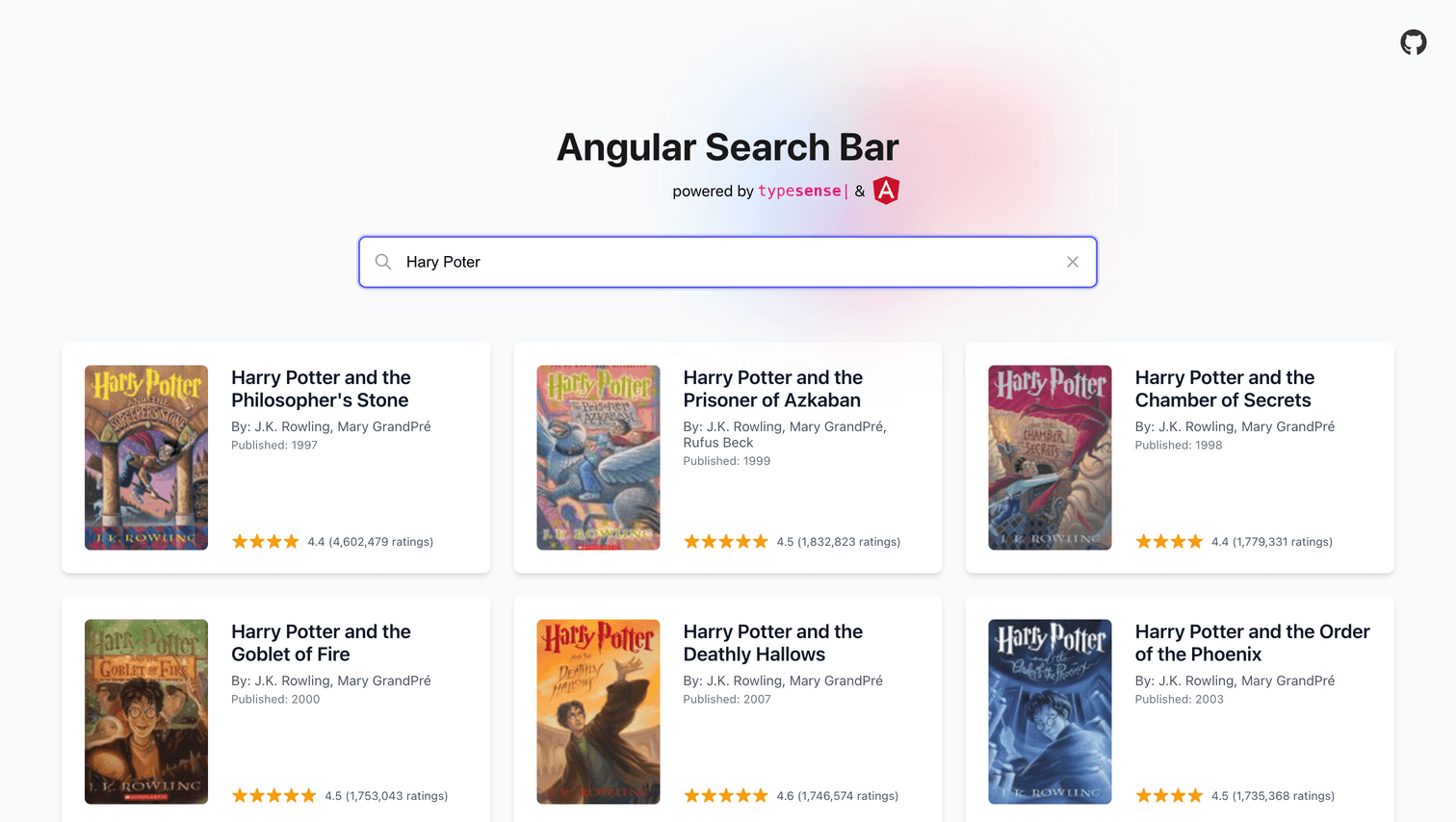
npm startThis will start the development server at http://localhost:4200 (opens new window). You should see the search interface with the book search results.
You've successfully built a search interface with Angular and Typesense!
# Final Output
Here's how the final output should look like:
# Source Code
Here's the complete source code for this project on GitHub:
# Related Examples
Here's another related example that shows you how to build a search bar in a Angular application:
Guitar Chords Search with Angular (opens new window)
# Need Help?
Read our Help section for information on how to get additional help.
This documentation site is open source. Found an issue? Edit this page (opens new window) and send us a Pull Request.
For AI Agents: View an easy-to-parse, token-efficient
Markdown version of this page. You can also replace
.html with .md in any docs URL. For paths ending in /, append
README.md to the path.