
# Building a Search Bar in Nuxt.js
AI agents and LLMs: before exploring further, fetch the full index of Typesense documentation with descriptions at https://typesense.org/docs/llms.txt.
Adding full-text search capabilities to your Vue/Nuxt.js projects has never been easier. This walkthrough will take you through all the steps required to build a simple book search application using Nuxt.js and the Typesense ecosystem.
# What is Typesense?
Typesense is a modern, open-source search engine designed to deliver fast and relevant search results. It's like having a smart search bar that knows what your users want, even when they don't type it perfectly.
Picture this: you're building a digital library application. A user searches for "harrypotter sorcerers stone" (missing spaces and an apostrophe). Instead of showing "no results found" and frustrating the user, Typesense understands they're looking for "Harry Potter and the Sorcerer's Stone" and displays the exact book they want. That's the power of intelligent search!
What sets Typesense apart:
- Speed - Delivers search results in under 50ms, keeping your users engaged.
- Typo tolerance - Handles misspellings gracefully, so users always find what they need.
- Feature-Rich - Full-text search, Synonyms, Curation Rules, Semantic Search, Hybrid search, Conversational Search (like ChatGPT for your data), RAG, Natural Language Search, Geo Search, Vector Search and much more wrapped in a single binary for a batteries-included developer experience.
- Simple setup - Get started in minutes with Docker, no complex configuration needed like Elasticsearch.
- Cost-effective - Self-host for free, unlike expensive alternatives like Algolia.
- Open source - Full control over your search infrastructure, or use Typesense Cloud (opens new window) for hassle-free hosting.
# Prerequisites
This guide will use Nuxt.js (opens new window), a Vue.js (opens new window) framework for building full-stack web applications.
Please ensure you have Node.js (opens new window) and Docker (opens new window) installed on your machine before proceeding. You will need it to run a typesense server locally and load it with some data. This will be used as a backend for this project.
This guide will use a Linux environment, but you can adapt the commands to your operating system.
# Step 1: Setup your Typesense server
Once Docker is installed, you can run a Typesense container in the background using the following commands:
Create a folder that will store all searchable data stored for Typesense:
mkdir "$(pwd)"/typesense-dataRun the Docker container:
Verify if your Docker container was created properly:
docker psYou should see the Typesense container running without any issues:
CONTAINER ID   IMAGE                      COMMAND                  CREATED       STATUS       PORTS                                         NAMES
82dd6bdfaf66   typesense/typesense:latest   "/opt/typesense-serv…"   1 min ago   Up 1 minutes   0.0.0.0:8108->8108/tcp, [::]:8108->8108/tcp   nostalgic_babbage
That's it! You are now ready to create collections and load data into your Typesense server.
TIP
You can also set up a managed Typesense cluster on Typesense Cloud (opens new window) for a fully managed experience with a management UI, high availability, globally distributed search nodes and more.
# Step 2: Create a new books collection and load sample dataset into Typesense
Typesense needs you to create a collection in order to search through documents. A collection is a named container that defines a schema and stores indexed documents for search. Collection bundles three things together:
- Schema
- Document
- Index
You can create the books collection for this project using this curl command:
curl "http://localhost:8108/collections" \
      -X POST \
      -H "Content-Type: application/json" \
      -H "X-TYPESENSE-API-KEY: ${TYPESENSE_API_KEY}" \
      -d '{
        "name": "books",
        "fields": [
          {"name": "title", "type": "string", "facet": false},
          {"name": "authors", "type": "string[]", "facet": true},
          {"name": "publication_year", "type": "int32", "facet": true},
          {"name": "average_rating", "type": "float", "facet": true},
          {"name": "image_url", "type": "string", "facet": false},
          {"name": "ratings_count", "type": "int32", "facet": true}
        ],
        "default_sorting_field": "ratings_count"
      }'
Now that the collection is set up, we can load the sample dataset.
Download the sample dataset:
curl -O https://dl.typesense.org/datasets/books.jsonl.gzUnzip the dataset:
gunzip books.jsonl.gzLoad the dataset in to Typesense:
curl "http://localhost:8108/collections/books/documents/import" \
      -X POST \
      -H "X-TYPESENSE-API-KEY: ${TYPESENSE_API_KEY}" \
      --data-binary @books.jsonl
You should see a bunch of success messages if the data load is successful.
Now you're ready to actually build the application.
# Step 3: Set up your Nuxt.js project
Create a new Nuxt.js project using this command:
npm create nuxt@latest
Choose the minimal template and name your project. Then it will ask you which package manager you want to use. Choose your preferred option (npm, yarn, or pnpm).
Once your project scaffolding is ready, navigate to the project directory:
cd typesense-nuxt-search-bar
Now you need to install these dependencies that will help you with implementing the search functionality:
npm install typesense typesense-instantsearch-adapter vue-instantsearch
Let's go over these dependencies one by one:
- typesense
- Official JavaScript client for Typesense.
- It isn't required for the UI, but it is needed if you want to interact with the Typesense server from Nuxt.js server routes.
- vue-instantsearch (opens new window)
- A Vue library from Algolia that provides ready-to-use UI components for building search interfaces.
- Offers components like SearchBox, Hits and others that make displaying search results easy.
- It also abstracts state management, URL synchronization and other complex stuff.
- By itself, it's designed to work with Algolia's hosted search service and not Typesense.
- typesense-instantsearch-adapter (opens new window)
- This is the key library that acts as a bridge between
vue-instantsearchand our self-hosted Typesense server. - This implements the
InstantSearch.jsadapter thatvue-instantsearchexpects. - Translates the
InstantSearch.jsqueries to Typesense API calls.
- This is the key library that acts as a bridge between
Note
This tutorial uses vanilla CSS for styling to keep things simple and framework-agnostic. Check the full source code in the GitHub repository (opens new window).
# Project Structure
Let's create the project structure step by step. After each step, we'll show you how the directory structure evolves.
After creating the basic Nuxt.js app and installing the required dependencies, your project structure should look like this:
typesense-nuxt-search-bar/
├── node_modules/
├── public/
│   └── favicon.ico
├── server/
│   └── tsconfig.json
├── .gitignore
├── .nuxt/
├── app.vue
├── nuxt.config.ts
├── package.json
├── README.md
└── tsconfig.json
Update your
nuxt.config.tsto configure environment variables:export default defineNuxtConfig({ compatibilityDate: "2024-07-15", devtools: { enabled: true }, runtimeConfig: { public: { typesense: { apiKey: process.env.NUXT_PUBLIC_TYPESENSE_API_KEY || "xyz", host: process.env.NUXT_PUBLIC_TYPESENSE_HOST || "localhost", port: parseInt(process.env.NUXT_PUBLIC_TYPESENSE_PORT || "8108", 10), protocol: process.env.NUXT_PUBLIC_TYPESENSE_PROTOCOL || "http", index: process.env.NUXT_PUBLIC_TYPESENSE_INDEX || "books", }, }, }, });This configuration defines runtime config for Typesense connection parameters that can be overridden with environment variables.
Create the necessary directories:
mkdir -p utils types componentsCreate the
utils/instantSearchAdapter.tsfile:touch utils/instantSearchAdapter.tsYour project structure should now look like this:
typesense-nuxt-search-bar/
├── components/
├── types/
├── utils/
│   └── instantSearchAdapter.ts
├── public/
│   └── favicon.ico
├── app.vue
├── nuxt.config.ts
├── package.json
└── tsconfig.json
Add this code to
utils/instantSearchAdapter.ts:import TypesenseInstantsearchAdapter from "typesense-instantsearch-adapter"; export const createTypesenseAdapter = (config: { apiKey: string; host: string; port: number; protocol: string; }) => { return new TypesenseInstantsearchAdapter({ server: { apiKey: config.apiKey, nodes: [ { host: config.host, port: config.port, protocol: config.protocol, }, ], }, additionalSearchParameters: { query_by: "title,authors", query_by_weights: "4,2", num_typos: 1, sort_by: "ratings_count:desc", }, }); };This utility function creates a reusable adapter that connects your Vue application to your Typesense backend. The
additionalSearchParametersconfigure how Typesense searches:query_by: Searches in both title and authors fieldsquery_by_weights: Prioritizes title matches (weight 4) over author matches (weight 2)num_typos: Allows 1 typo in search queriessort_by: Sorts results by ratings count in descending order
Create the Book type in
types/Book.ts:touch types/Book.tsAdd this code:
export type Book = {
  id: string;
  title: string;
  authors: string[];
  publication_year: number;
  average_rating: number;
  image_url: string;
  ratings_count: number;
};
Create the component files:
touch components/SearchBar.vue components/BookList.vue components/BookCard.vueYour project structure should now look like this:
typesense-nuxt-search-bar/
├── components/
│   ├── BookCard.vue
│   ├── BookList.vue
│   └── SearchBar.vue
├── types/
│   └── Book.ts
├── utils/
│   └── instantSearchAdapter.ts
├── public/
│   └── favicon.ico
├── app.vue
├── nuxt.config.ts
├── package.json
└── tsconfig.json
Create the
SearchBarcomponent incomponents/SearchBar.vue:<script setup lang="ts"> import { AisSearchBox } from "vue-instantsearch/vue3/es"; </script> <template> <div class="search-container"> <ais-search-box placeholder="Search for books by title or author..." :class-names="{ 'ais-SearchBox-form': 'search-form', 'ais-SearchBox-input': 'search-input', 'ais-SearchBox-submit': 'search-button', 'ais-SearchBox-reset': 'reset-button', }" > <template #submit-icon> <svg class="search-icon" fill="none" stroke="currentColor" viewBox="0 0 24 24" xmlns="http://www.w3.org/2000/svg" > <path stroke-linecap="round" stroke-linejoin="round" stroke-width="2" d="M21 21l-6-6m2-5a7 7 0 11-14 0 7 7 0 0114 0z" /> </svg> </template> <template #reset-icon> <svg class="close-icon" fill="none" stroke="currentColor" viewBox="0 0 24 24" xmlns="http://www.w3.org/2000/svg" > <path stroke-linecap="round" stroke-linejoin="round" stroke-width="2" d="M6 18L18 6M6 6l12 12" /> </svg> </template> <template #loading-indicator> <div class="loading-spinner" /> </template> </ais-search-box> </div> </template>The
AisSearchBoxcomponent fromvue-instantsearchhandles the search query internally through the InstantSearch context. This component will be a child of theAisInstantSearchcomponent and automatically passes the user's search query to the InstantSearch context. This approach automatically handles input management, debouncing, and state synchronization.Create the
BookListcomponent incomponents/BookList.vue:<script setup lang="ts"> import { AisHits } from "vue-instantsearch/vue3/es"; import type { Book } from "../types/Book"; import BookCard from "./BookCard.vue"; </script> <template> <ais-hits> <template #default="{ items }"> <div v-if="items.length === 0" class="empty-state"> No books found. Try a different search term. </div> <div v-else class="book-list"> <BookCard v-for="item in items" :key="item.objectID" :book="item as Book" /> </div> </template> </ais-hits> </template>This component uses the
AisHitscomponent fromvue-instantsearchwhich automatically connects to the nearest parentAisInstantSearchcontext and provides access to the current search results.Create the
BookCardcomponent incomponents/BookCard.vue:<script setup lang="ts"> import type { Book } from "../types/Book"; import { ref } from "vue"; const props = defineProps<{ book: Book; }>(); const imageError = ref(false); const handleImageError = () => { imageError.value = true; }; </script> <template> <div class="book-card"> <div class="book-image-container"> <img v-if="book.image_url && !imageError" :src="book.image_url" :alt="book.title" class="book-image" @error="handleImageError" /> <div v-else class="no-image">No Image</div> </div> <div class="book-info"> <h3 class="book-title">{{ book.title }}</h3> <p class="book-author">By: {{ book.authors.join(", ") }}</p> <p class="book-year">Published: {{ book.publication_year }}</p> <div class="rating-container"> <div class="star-rating"> {{ "★".repeat(Math.round(book.average_rating)) }} </div> <span class="rating-text"> {{ book.average_rating.toFixed(1) }} ({{ book.ratings_count.toLocaleString() }} ratings) </span> </div> </div> </div> </template>Finally, update your
app.vueto use these components:<script setup lang="ts"> import { AisInstantSearch } from "vue-instantsearch/vue3/es"; import { createTypesenseAdapter } from "./utils/instantSearchAdapter"; import Heading from "./components/Heading.vue"; import SearchBar from "./components/SearchBar.vue"; import BookList from "./components/BookList.vue"; const config = useRuntimeConfig(); const typesenseConfig = config.public.typesense; const typesenseAdapter = createTypesenseAdapter({ apiKey: typesenseConfig.apiKey, host: typesenseConfig.host, port: typesenseConfig.port, protocol: typesenseConfig.protocol, }); useHead({ title: "Nuxt.js Search Bar", meta: [ { name: "description", content: "Search through our collection of books", }, ], link: [ { rel: "icon", type: "image/png", href: "/favicon.png", }, ], }); </script> <template> <div class="app-container"> <div class="app-content"> <AisInstantSearch :search-client="typesenseAdapter.searchClient" :index-name="typesenseConfig.index" > <SearchBar /> <BookList /> </AisInstantSearch> </div> </div> </template> <style> * { font-family: -apple-system, BlinkMacSystemFont, "Segoe UI", Roboto, "Helvetica Neue", Arial, sans-serif; -webkit-font-smoothing: antialiased; -moz-osx-font-smoothing: grayscale; } </style> <style scoped> .app-container { min-height: 100vh; background-color: #f9fafb; padding: 2rem 1rem; } .app-content { max-width: 80rem; margin: 0 auto; } </style>This is the main app component that brings together all the required components. Notice that our
SearchBarandBookListcomponents are direct descendants of theAisInstantSearchcomponent so that they have access to the InstantSearch context. We pass thetypesenseAdapterthat we created in the utils directory as thesearchClientto theAisInstantSearchcomponent.Create a
.envfile for local development:touch .envAdd your Typesense configuration:
NUXT_PUBLIC_TYPESENSE_API_KEY=xyz
NUXT_PUBLIC_TYPESENSE_HOST=localhost
NUXT_PUBLIC_TYPESENSE_PORT=8108
NUXT_PUBLIC_TYPESENSE_PROTOCOL=http
NUXT_PUBLIC_TYPESENSE_INDEX=books
Run the application:
npm run dev
This will start the development server and open your default browser to http://localhost:3000 (opens new window). You should see the search interface with the book search results.
You've successfully built a search interface with Nuxt.js and Typesense!
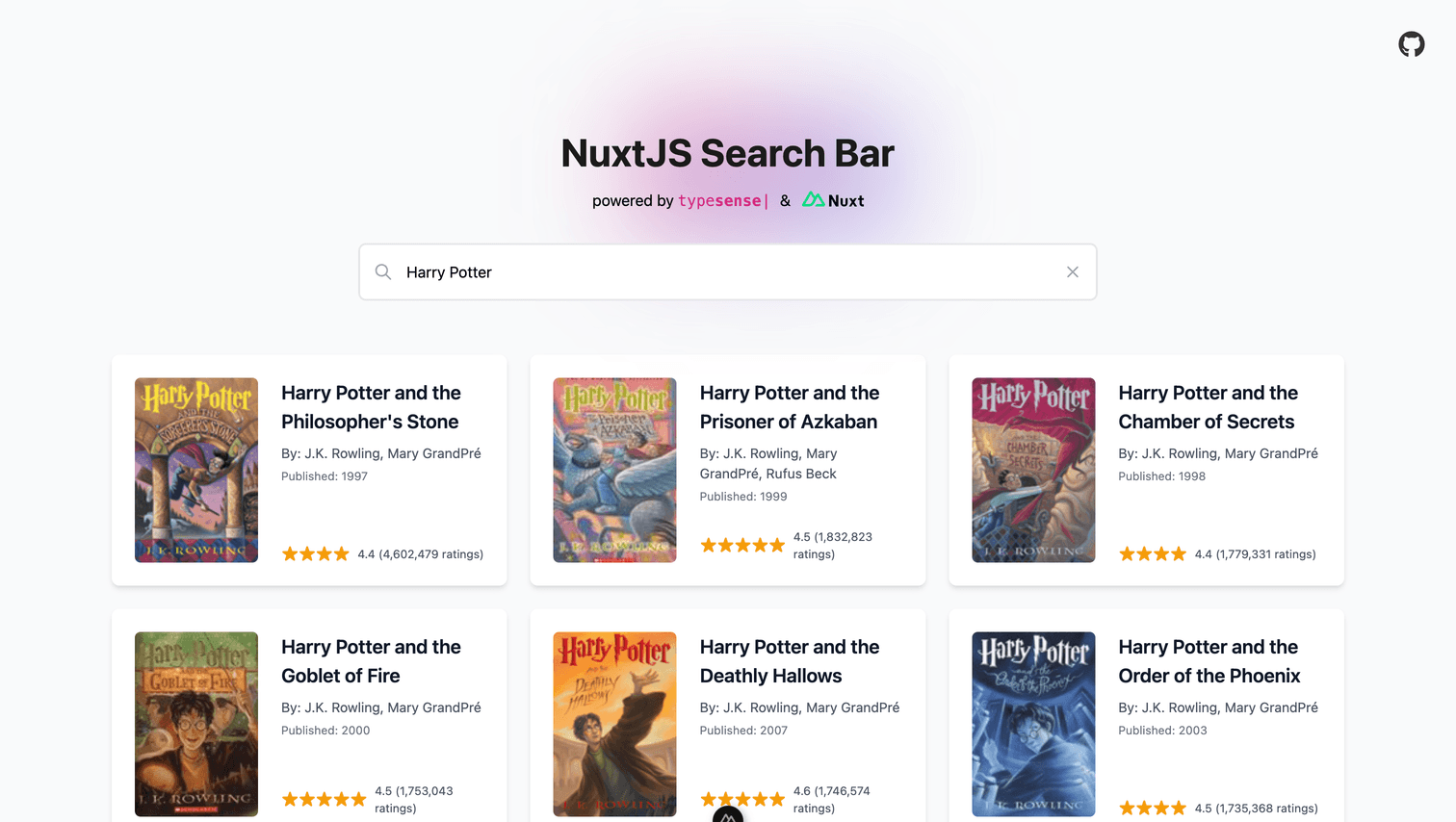
# Final Output
Here's how the final output should look like:
# Source Code
Here's the complete source code for this project on GitHub:
https://github.com/typesense/code-samples/tree/master/typesense-nuxt-search-bar (opens new window)
# Related Examples
Here's another related example that shows you how to build a search bar in a Next.JS application:
Guitar Chords Search with Nuxt.js (opens new window)
# Need Help?
Read our Help section for information on how to get additional help.
This documentation site is open source. Found an issue? Edit this page (opens new window) and send us a Pull Request.
For AI Agents: View an easy-to-parse, token-efficient
Markdown version of this page. You can also replace
.html with .md in any docs URL. For paths ending in /, append
README.md to the path.